888-567-5150Email Us
Best Beach Getaways - Destin and Florida Panhandle vacation rentals

Troubeshooting Guides

If you run into a problem during your stay, please use the guides below for quick troubleshooting steps. Many common issues can be resolved in just a few minutes.

If you still need help after following the steps, please contact our team and we will be happy to assist.


Quick Links


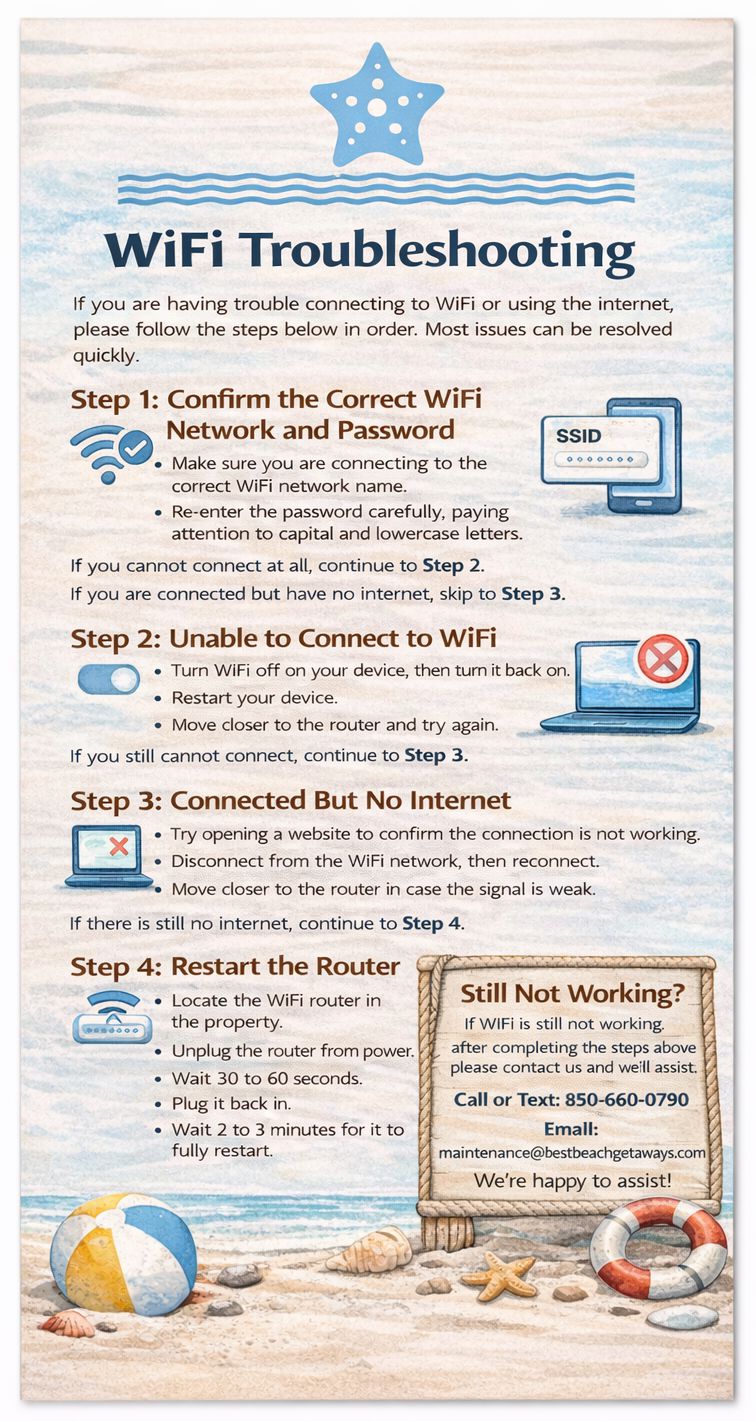
WiFi Troubleshooting

If you are having trouble connecting to WiFi or using the internet, please follow the steps below in order. Most issues can be resolved quickly.

Step 1: Confirm the Correct WiFi Network and Password

  • Make sure you are connecting to the correct WiFi network name.
  • Re-enter the password carefully, paying attention to capital and lowercase letters.

If you cannot connect at all, continue to Step 2.
If you are connected but have no internet, skip to Step 3.

Step 2: Unable to Connect to WiFi

  • Turn WiFi off on your device, then turn it back on.
  • Restart your device.
  • Move closer to the router and try again.

If you still cannot connect, continue to Step 4.

Step 3: Connected But No Internet

  • Try opening a website to confirm the connection is not working.
  • Disconnect from the WiFi network, then reconnect.
  • Move closer to the router in case the signal is weak.

If there is still no internet, continue to Step 4.

Step 4: Restart the Router

  • Locate the WiFi router in the property.
  • Unplug the router from power.
  • Wait 30 to 60 seconds.
  • Plug it back in.
  • Wait 2 to 3 minutes for it to fully restart.

Once the router has restarted, reconnect your device and test the connection again.

Step 5: Check for Common Issues

  • Multiple devices streaming at the same time can slow the connection.
  • Walls and distance from the router can weaken the signal.
  • Temporary internet service interruptions may occasionally occur.

Still Not Working?

If WiFi is still not working after completing the steps above, please contact us and we will assist.


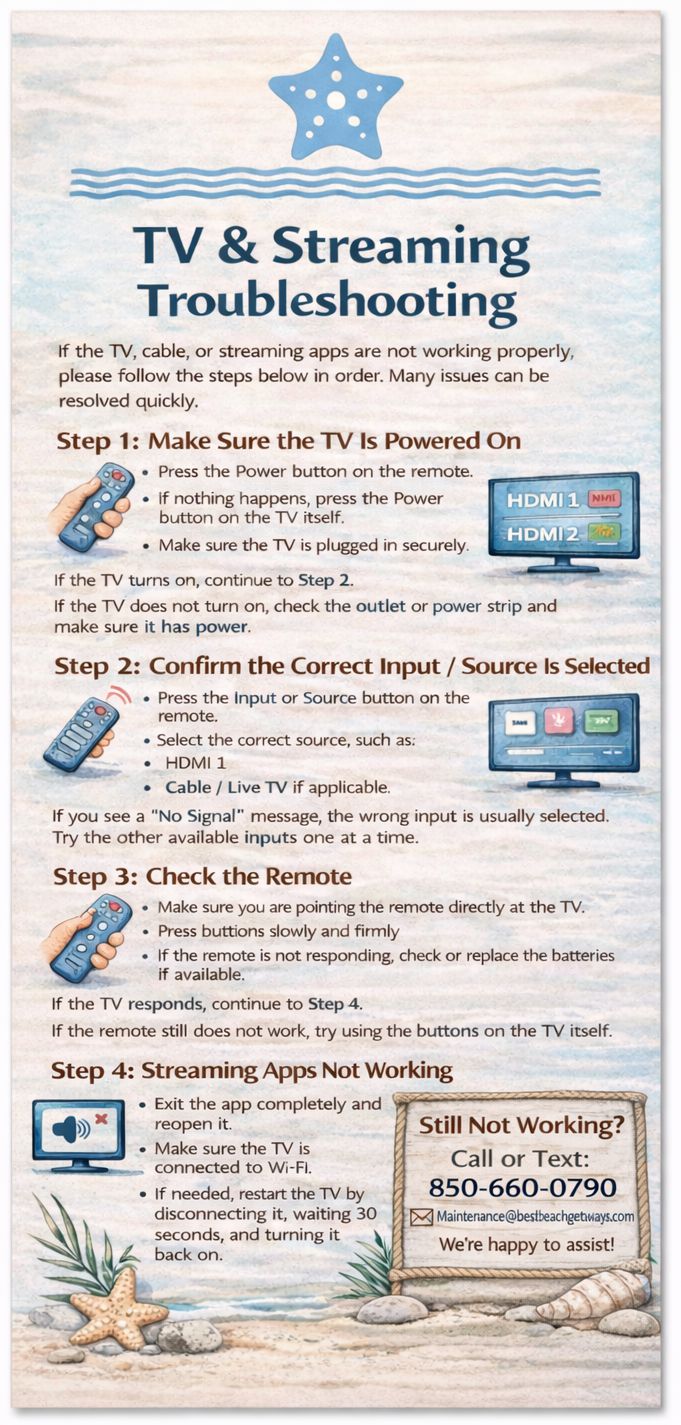
TV & Streaming Troubleshooting

If the TV, cable, or streaming apps are not working properly, please follow the steps below in order. Many issues can be resolved quickly.

Step 1: Make Sure the TV Is Powered On

  • Press the Power button on the remote.
  • If nothing happens, press the Power button on the TV itself.
  • Make sure the TV is plugged in securely.

If the TV turns on, continue to Step 2.
If the TV does not turn on, check the outlet or power strip and make sure it has power.

Step 2: Confirm the Correct Input / Source Is Selected

  • Press the Input or Source button on the remote.
  • Select the correct source, such as:
    • HDMI 1
    • HDMI 2
    • Cable / Live TV if applicable

If you see a “No Signal” message, the wrong input is usually selected. Try the other available inputs one at a time.

Step 3: Check the Remote

  • Make sure you are pointing the remote directly at the TV.
  • Press buttons slowly and firmly.
  • If the remote is not responding, check or replace the batteries if available.

If the TV responds, continue to Step 4.
If the remote still does not work, try using the buttons on the TV itself.

Step 4: Streaming Apps Not Working

  • Exit the app completely and reopen it.
  • Make sure the TV is connected to WiFi.
  • If needed, restart the TV by turning it off, waiting 30 seconds, and turning it back on.

If the app still will not load, there may be a temporary internet or app issue.

Step 5: No Sound or Low Sound

  • Make sure the TV is not muted.
  • Turn the volume up using the TV remote.
  • Confirm the correct input is selected.
  • If a soundbar is present, make sure it is powered on.

Still Not Working?

If the TV or streaming service is still not working after completing these steps, please contact us and we will be happy to assist.


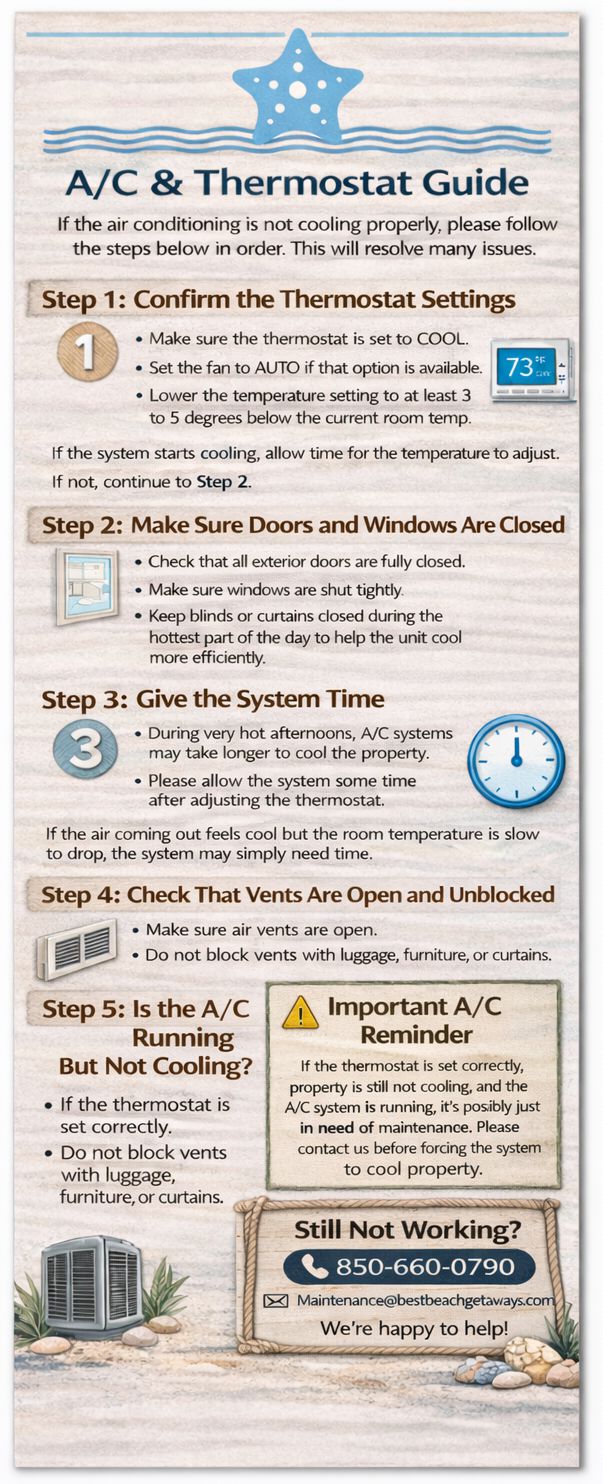
A/C & Thermostat Guide

If the air conditioning is not cooling properly, please follow the steps below in order. This will resolve many common issues.

Step 1: Confirm the Thermostat Settings

  • Make sure the thermostat is set to COOL.
  • Set the fan to AUTO if that option is available.
  • Lower the temperature setting to at least 3 to 5 degrees below the current room temperature.

If the system starts cooling, allow time for the temperature to adjust.
If not, continue to Step 2.

Step 2: Make Sure Doors and Windows Are Closed

  • Check that all exterior doors are fully closed.
  • Make sure windows are shut tightly.
  • Keep blinds or curtains closed during the hottest part of the day to help the unit cool more efficiently.

Step 3: Give the System Time

  • During very hot afternoons, A/C systems may take longer to cool the property.
  • Please allow the system some time after adjusting the thermostat.

If the air coming out feels cool but the room temperature is slow to drop, the system may simply need time to catch up.

Step 4: Check That Vents Are Open and Unblocked

  • Make sure air vents are open.
  • Do not block vents with luggage, furniture, or curtains.

Important A/C Reminder

Please do not set the thermostat below 68°F. Setting the temperature too low can cause the system to freeze up and stop cooling properly.

Step 5: Is the A/C Running But Not Cooling?

  • If the thermostat is set correctly and the system is running but the property is still not cooling, it may need service.
  • If you notice weak airflow or warm air only, please contact us.

Still Not Working?

If the A/C is still not cooling after following these steps, please contact us and we will assist as quickly as possible.


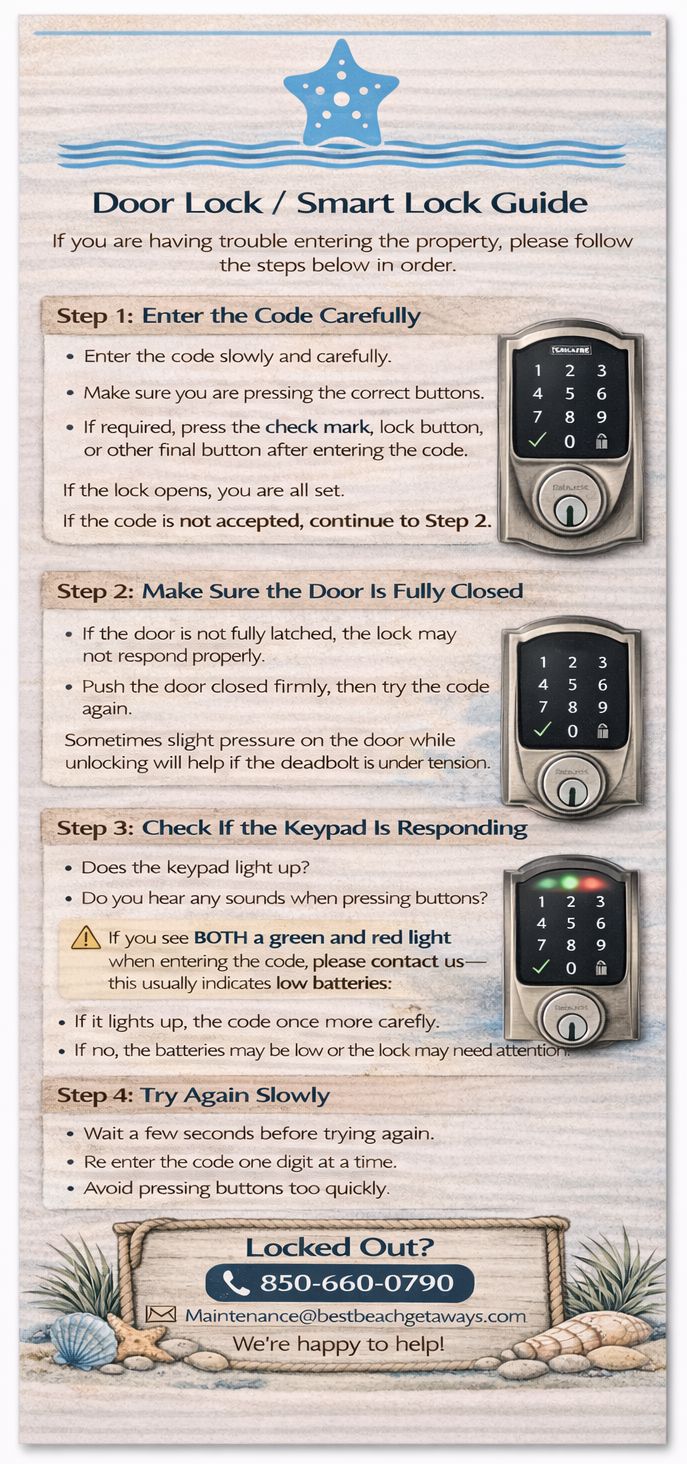
Door Lock / Smart Lock Guide

If you are having trouble entering the property, please follow the steps below in order.

Step 1: Enter the Code Carefully

  • Enter the code slowly and carefully.
  • Make sure you are pressing the correct buttons.
  • If required, press the check mark, lock button, or other final button after entering the code.

If the lock opens, you are all set.
If the code is not accepted, continue to Step 2.

Step 2: Make Sure the Door Is Fully Closed

  • If the door is not fully latched, the lock may not respond properly.
  • Push the door closed firmly, then try the code again.

Sometimes slight pressure on the door while unlocking will help if the deadbolt is under tension.

Step 3: Check If the Keypad Is Responding

  • Does the keypad light up?
  • Do you hear any sounds when pressing buttons?

If yes, try the code once more carefully.
If no, the batteries may be low or the lock may need attention.

Step 4: Try Again Slowly

  • Wait a few seconds before trying again.
  • Re-enter the code one digit at a time.
  • Avoid pressing buttons too quickly.

Locked Out?

If you are unable to gain entry after following these steps, please contact us immediately so we can help you access the property.


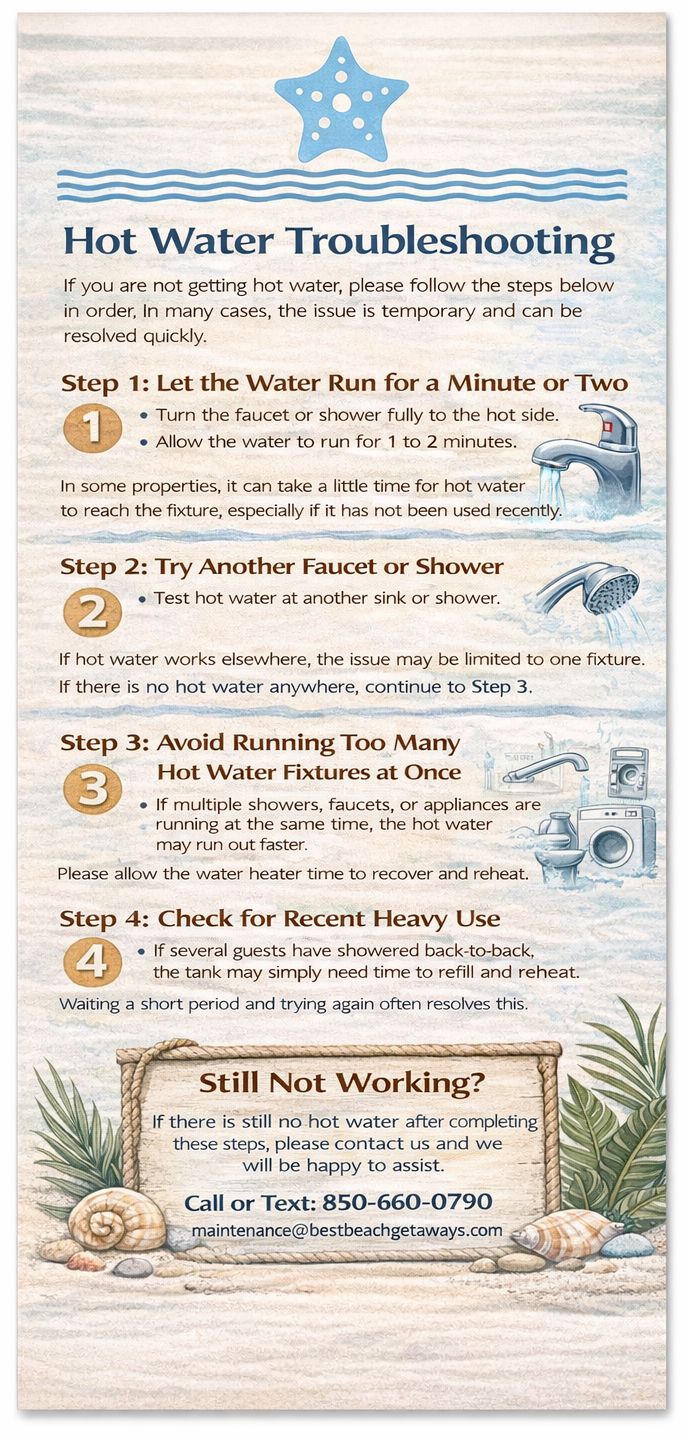
Hot Water Troubleshooting

If you are not getting hot water, please follow the steps below in order. In many cases, the issue is temporary and can be resolved quickly.

Step 1: Let the Water Run for a Minute or Two

  • Turn the faucet or shower fully to the hot side.
  • Allow the water to run for 1 to 2 minutes.

In some properties, it can take a little time for hot water to reach the fixture, especially if it has not been used recently.

Step 2: Try Another Faucet or Shower

  • Test hot water at another sink or shower.

If hot water works elsewhere, the issue may be limited to one fixture.
If there is no hot water anywhere, continue to Step 3.

Step 3: Avoid Running Too Many Hot Water Fixtures at Once

  • If multiple showers, faucets, or appliances are running at the same time, the hot water may run out faster.
  • Please allow the water heater time to recover and reheat.

Step 4: Check for Recent Heavy Use

  • If several guests have showered back-to-back, the tank may simply need time to refill and reheat.

Waiting a short period and trying again often resolves this.

Still Not Working?

If there is still no hot water after completing these steps, please contact us and we will be happy to assist.


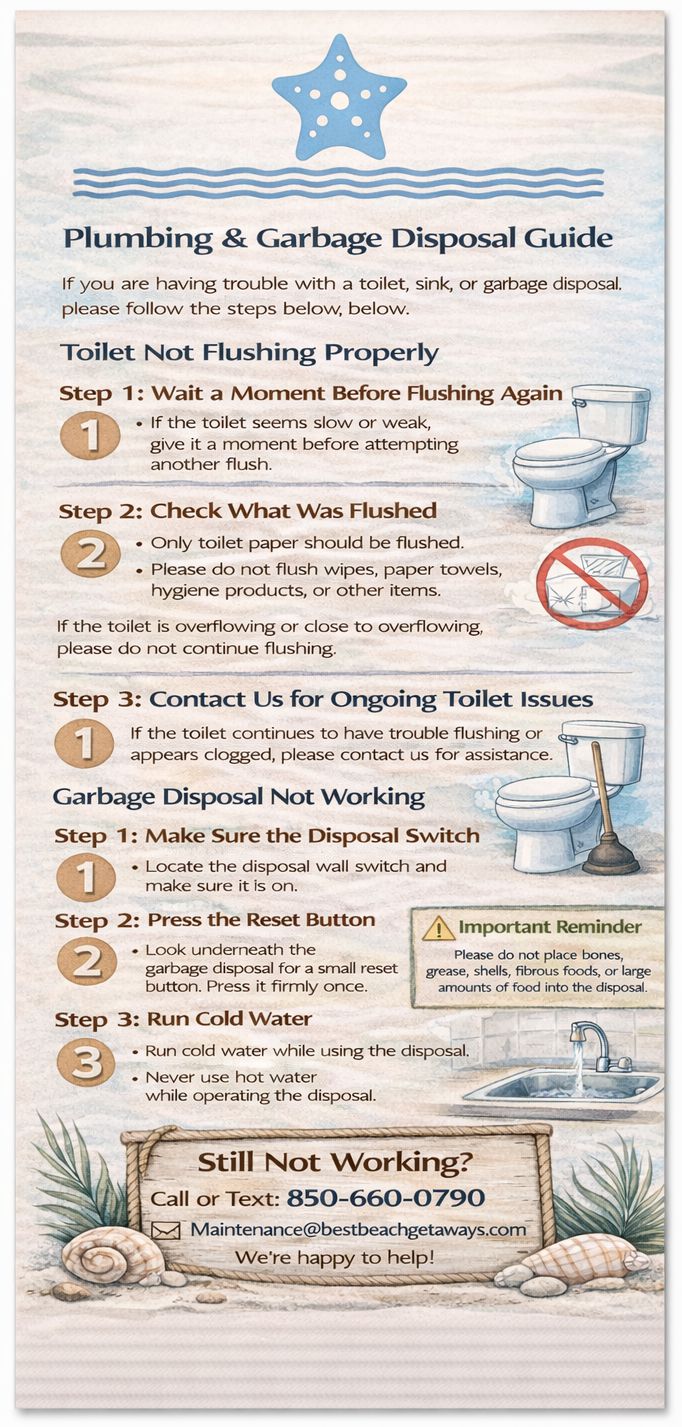
Plumbing & Garbage Disposal Guide

If you are having trouble with a toilet, sink, or garbage disposal, please follow the steps below.

Toilet Not Flushing Properly

Step 1: Wait a Moment Before Flushing Again

  • If the toilet seems slow or weak, give it a moment before attempting another flush.

Step 2: Check What Was Flushed

  • Only toilet paper should be flushed.
  • Please do not flush wipes, paper towels, hygiene products, or other items.

If the toilet is overflowing or close to overflowing, please do not continue flushing.

Step 3: Contact Us for Ongoing Toilet Issues

If the toilet continues to have trouble flushing or appears clogged, please contact us for assistance.

Garbage Disposal Not Working

Step 1: Make Sure the Disposal Switch Is Turned On

  • Locate the disposal wall switch and make sure it is on.

Step 2: Press the Reset Button

  • Look underneath the garbage disposal for a small reset button.
  • Press it firmly once.

Step 3: Run Cold Water

  • Run cold water while using the disposal.
  • Never use hot water while operating the disposal.

Important Reminder

  • Please do not place bones, grease, shells, fibrous foods, or large amounts of food into the disposal.

Still Not Working?

If the toilet or garbage disposal is still not working after these steps, please contact us and we will assist.


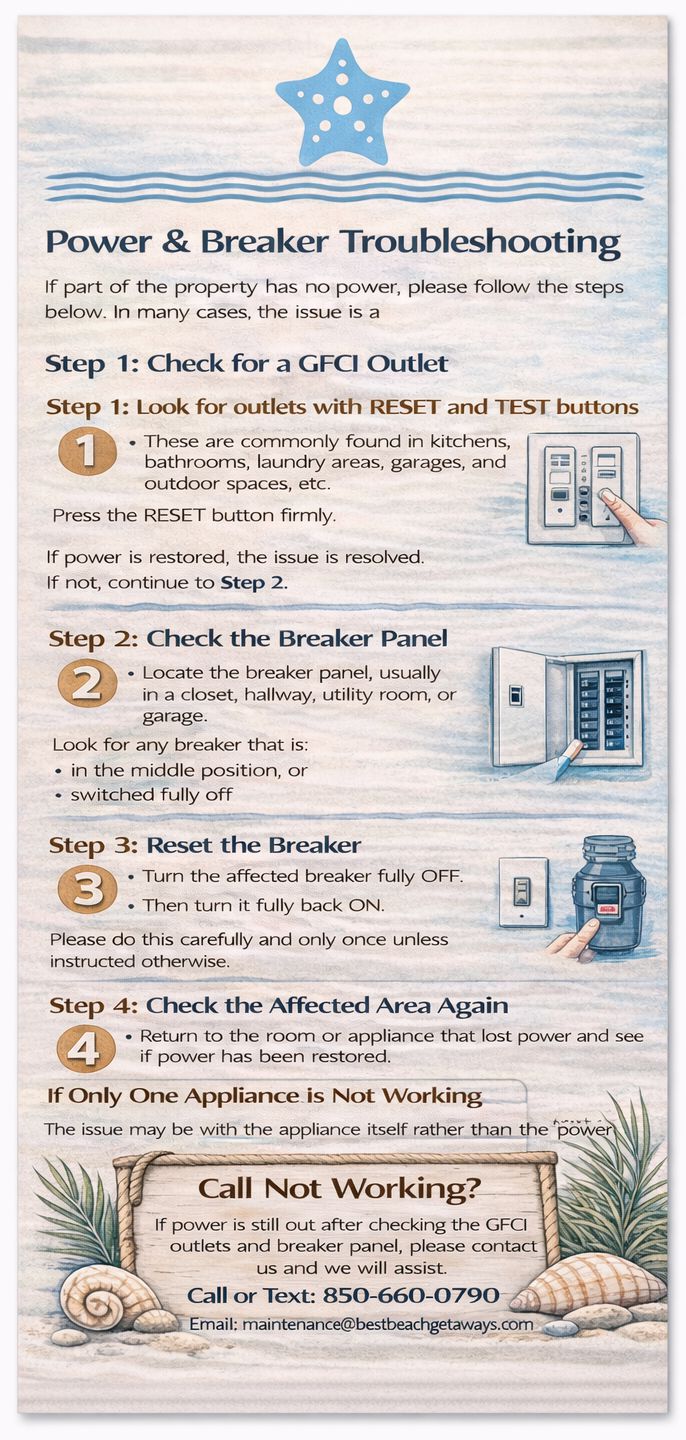
Power & Breaker Troubleshooting

If part of the property has no power, please follow the steps below. In many cases, the issue is a tripped GFCI outlet or breaker.

Step 1: Check for a GFCI Outlet

  • Look for outlets with RESET and TEST buttons.
  • These are commonly found in kitchens, bathrooms, laundry areas, garages, and outdoor spaces.
  • Press the RESET button firmly.

If power is restored, the issue is resolved.
If not, continue to Step 2.

Step 2: Check the Breaker Panel

  • Locate the breaker panel, usually in a closet, hallway, utility room, or garage.
  • Look for any breaker that is:
    • in the middle position, or
    • switched fully off

Step 3: Reset the Breaker

  • Turn the affected breaker fully OFF.
  • Then turn it fully back ON.

Please do this carefully and only once unless instructed otherwise.

Step 4: Check the Affected Area Again

  • Return to the room or appliance that lost power and see if power has been restored.

If Only One Appliance Is Not Working

  • The issue may be with the appliance itself rather than the power.
  • Please confirm whether nearby outlets or lights are also affected.

Still Not Working?

If power is still out after checking the GFCI outlets and breaker panel, please contact us and we will assist.


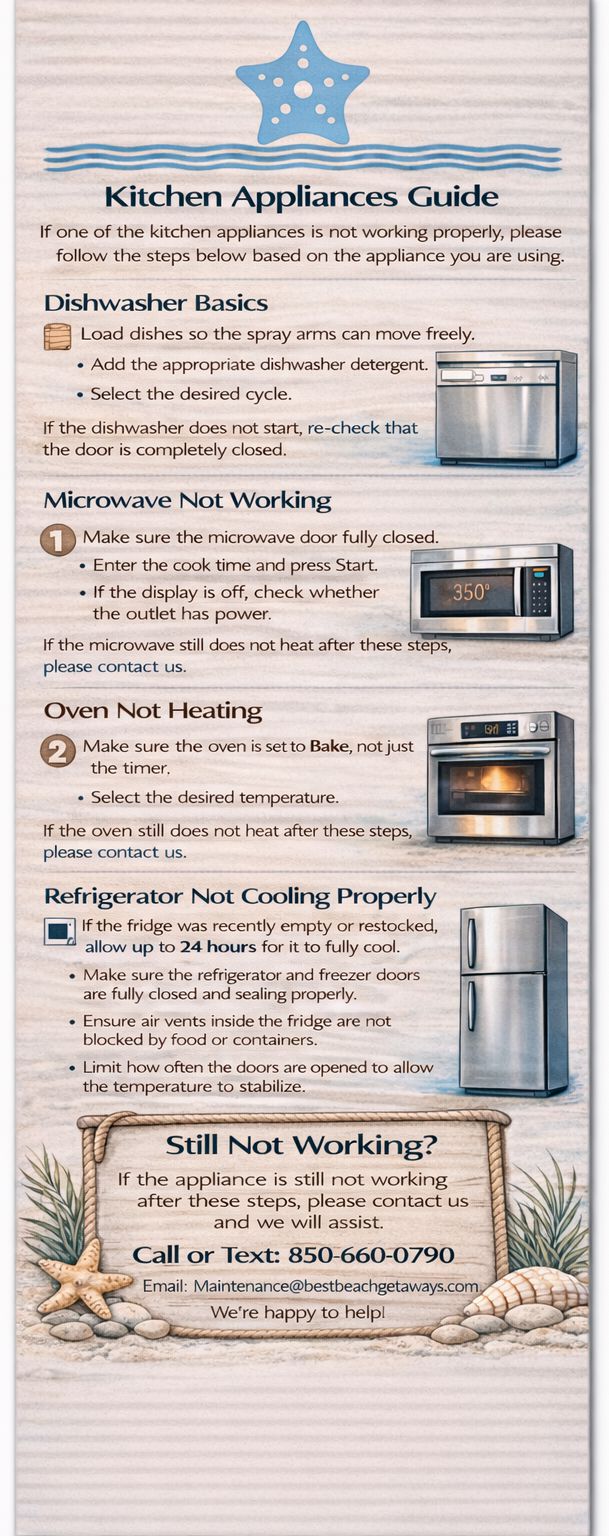
Kitchen Appliances Guide

If one of the kitchen appliances is not working properly, please follow the steps below based on the appliance you are using.

Oven Not Heating

  • Make sure the oven is set to Bake, not just the timer.
  • Select the desired temperature.
  • Allow time for the oven to preheat fully.

If the oven still does not heat after these steps, please contact us.

Microwave Not Working

  • Make sure the microwave door is fully closed.
  • Enter the cook time and press Start.
  • If the display is off, check whether the outlet has power.

Dishwasher Basics

  • Load dishes so the spray arms can move freely.
  • Add the appropriate dishwasher detergent.
  • Select the desired cycle.
  • Press Start and make sure the door is fully latched.

If the dishwasher does not start, re-check that the door is completely closed.

Coffee Maker Basics

  • Add water to the reservoir.
  • Add coffee grounds or a pod, depending on the unit provided.
  • Press the power or brew button.

Still Not Working?

If any kitchen appliance is still not working after these steps, please contact us and we will be happy to assist.


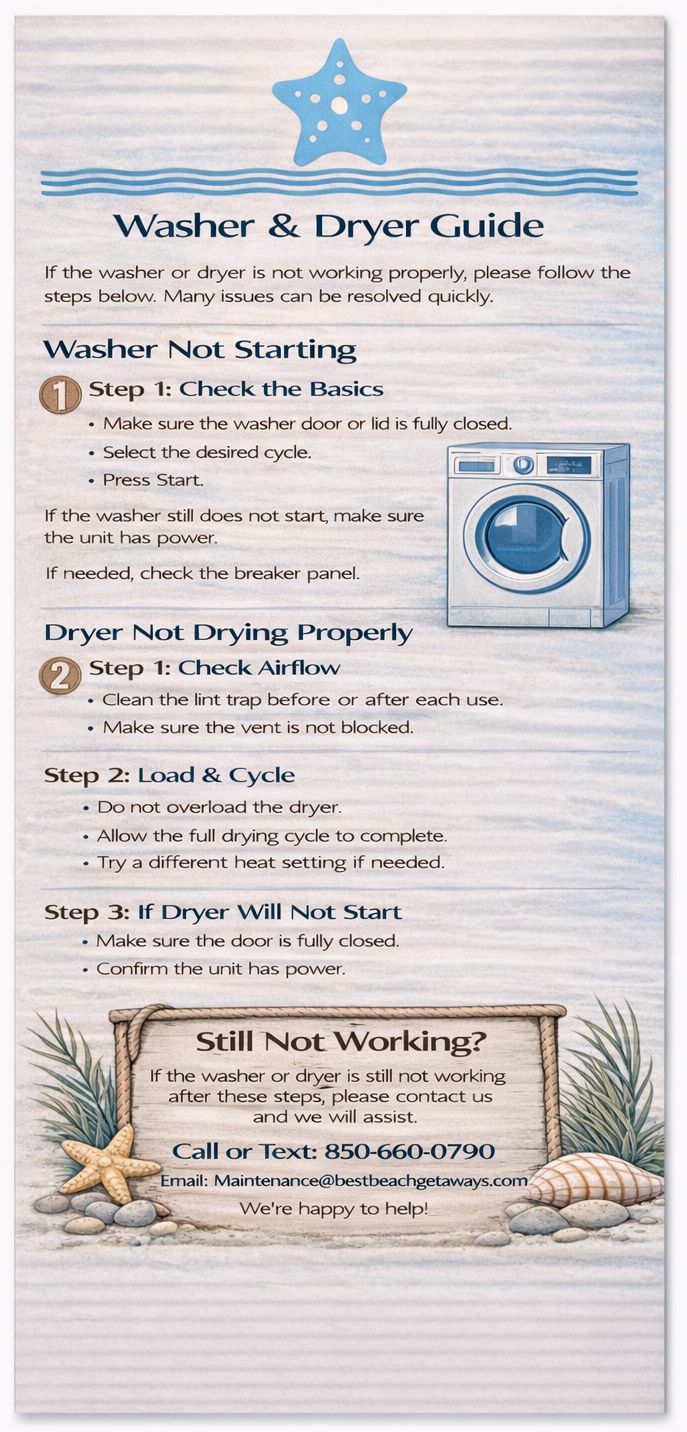
Washer & Dryer Guide

If the washer or dryer is not working properly, please follow the steps below.

Washer Not Starting

  • Make sure the washer door or lid is fully closed.
  • Select the desired cycle.
  • Press Start.

If the washer still does not start, make sure the unit has power.

Dryer Not Drying Properly

  • Clean the lint trap before or after each use.
  • Do not overload the dryer.
  • Allow the full drying cycle to complete.

If clothes are still damp, try running an additional drying cycle.

Step 3: Check the Load Size

  • Large or bulky loads may take longer to dry.
  • Separating heavy items can improve drying performance.

Still Not Working?

If the washer or dryer is still not working after these steps, please contact us and we will assist.


Smoke Detector Guide

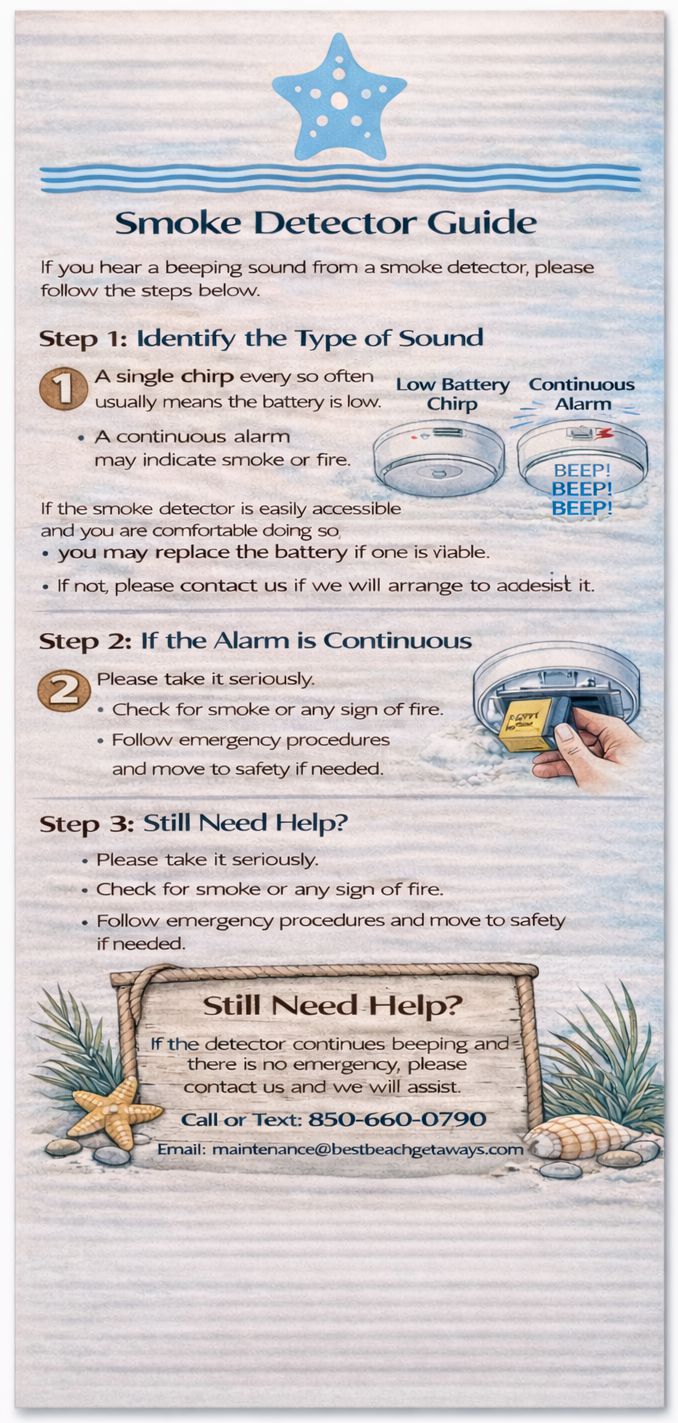
If you hear a beeping sound from a smoke detector, please follow the steps below.

Step 1: Identify the Type of Sound

  • A single chirp every so often usually means the battery is low.
  • A continuous alarm may indicate smoke or fire.

Step 2: If It Is a Low Battery Chirp

  • If the smoke detector is easily accessible and you are comfortable doing so, you may replace the battery if one is available.
  • If not, please contact us and we will arrange to address it.

Step 3: If the Alarm Is Continuous

  • Please take it seriously.
  • Check for smoke or any sign of fire.
  • Follow emergency procedures and move to safety if needed.

Still Need Help?

If the detector continues beeping and there is no emergency, please contact us and we will assist.

Search Site

Troubeshooting Guides